
The Progress Chef 360 platform delivers unprecedented improvements in performance, reliability and operational efficiency. In our latest update, we have another set of powerful services that manage and enforce infrastructure consistency at scale with high availability.
The Chef Declarative State Management (DSM) service acts as a central repository for configuration data. It manages cookbooks, policies and metadata for nodes managed by Progress Chef Infra Client. DSM enables nodes to efficiently request and receive configuration details, enabling streamlined deployment and management processes.
Building on this foundation, DSM provides a range of operational and strategic benefits, making it a key feature of the Chef 360 platform. With DSM, you can gain the following benefits:
- Scalability: The Chef 360 Platform Kubernetes-based runtime allows the DSM service to scale horizontally by adding or removing pods as needed. This is particularly valuable for enterprise environments with unpredictable workloads or rapid growth across global operations.
- High availability: The DSM service on Kubernetes benefits from the platform’s self-healing capabilities, confirming services remain available even when unexpected failures occur. This is critical for enterprise operations that can’t tolerate downtime.
- Streamlined updates and rollbacks: With DSM in the Chef 360 platform, updates are managed automatically and include preflight checks to maintain compatibility and increase upgrade success rates. You can roll back configuration changes and updates, reducing the risk of downtime or errors during upgrades. This is essential for enterprise change management processes.
- Resource optimization and cost efficiency: The DSM service on Kubernetes can use dynamic resource allocation, maintaining efficient use of CPU, memory and storage, leading to cost efficiency.
Enhanced Security: Kubernetes allows the DSM service to operate within isolated containers, reducing attack surfaces while providing granular role-based access control. This is essential for enterprise security and compliance requirements.
Set Up Declarative State Management (DSM) with Your Existing Chef 360 Infrastructure
Before You Start ensure the following:
Review the Chef 360 installation guide
Review the firewall requirements
Provision the required Chef 360 platform infrastructure
Complete tenant setup and SMTP configuration (We recommend using Mailpit if you are evaluating or testing the Chef 360 platform)
Confirm access to the Chef 360 UI after deployment
Install Chef Workstation on your local machine
Confirm access to at least one target node for bootstrapping
What you will accomplish
Connect your workstation to DSM
Configure or use an existing organization
Bootstrap a target node
Upload and apply a cookbook
Estimated time for Setup: 30–60 minutes
To set up the Chef 360 platform, please follow our guide.
The cluster must contain at least 10 cores for Chef 360 with DSM or else the pre-flight checks will throw an error.
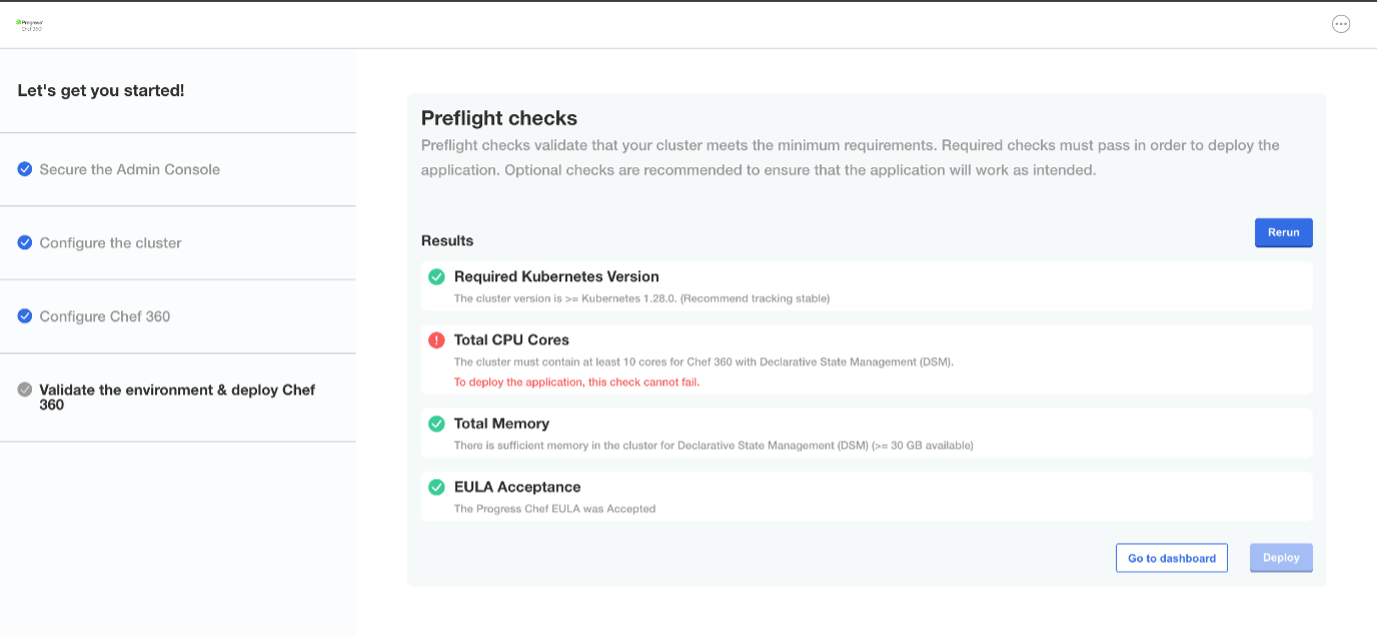
You will receive a onetime password link to your configured mailbox after successful deployment. If you set up Mailpit, you can access your email in Mailpit from http://<TENANT_FQDN>:31101
Using the link received in your mailbox, setup the password and you will be able to login to Chef360 UI.
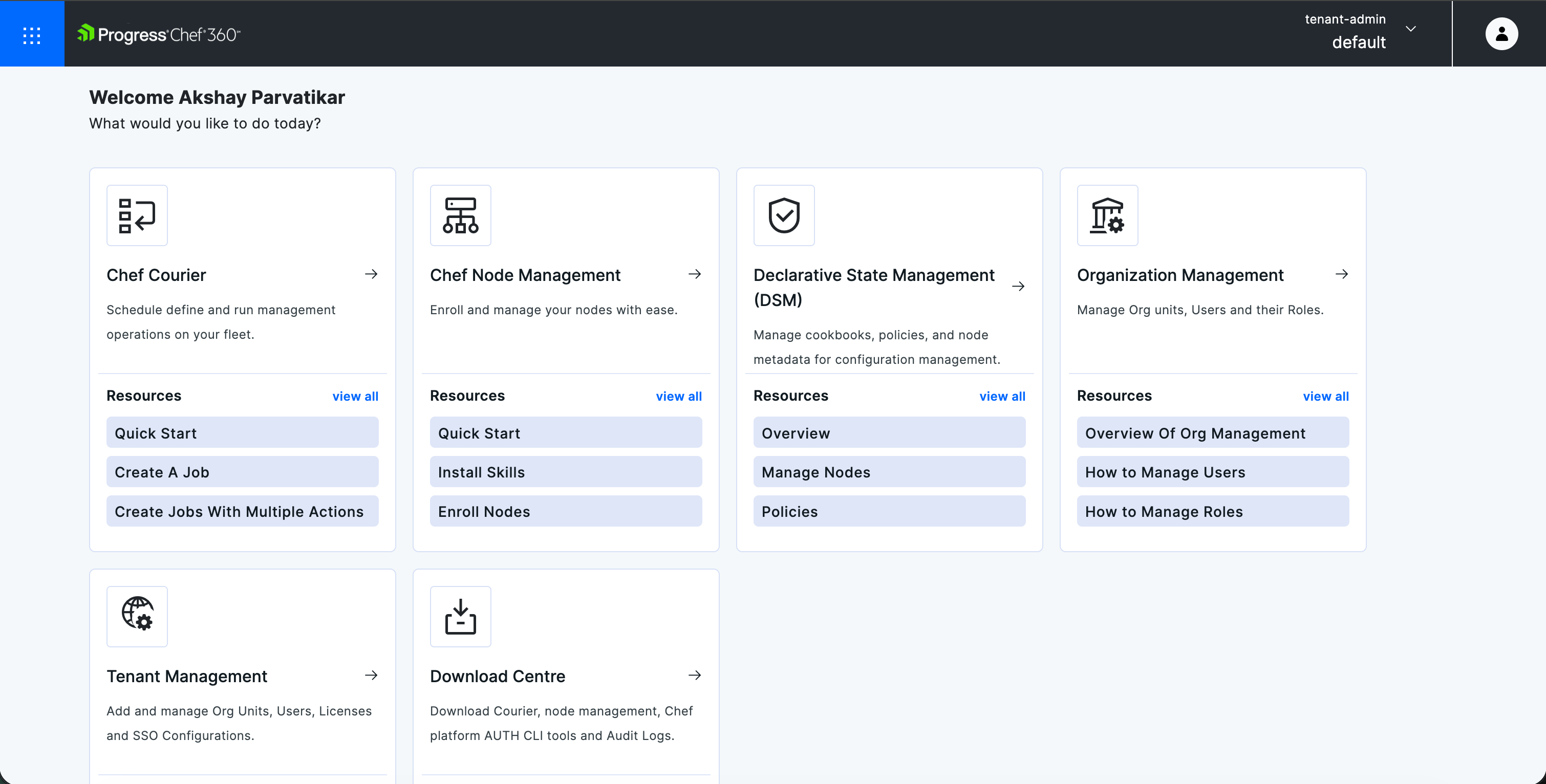
Configuration
Install Workstation:
The Chef Workstation is a toolset that provides everything you need to author, test and manage Chef automation code. It includes the Chef Infra Client, command-line tools like knife and testing frameworks, allowing you to develop and interact with your Chef infrastructure from your local machine.
To set up the Chef Workstation, please follow the steps given here.
Create an org: Org (short for organization) is a logical container used in Chef Server to group and manage Nodes (managed systems), Cookbooks, Roles, Environments, Users and Policies:
$ knife org create akshay “akshay-demo.pem” -a pivotal.
To get the client key and node name, log in to the Chef 360 UI and click on profile on the top right corner of the Chef 360 platform. Click Account settings, then Regenerate key.
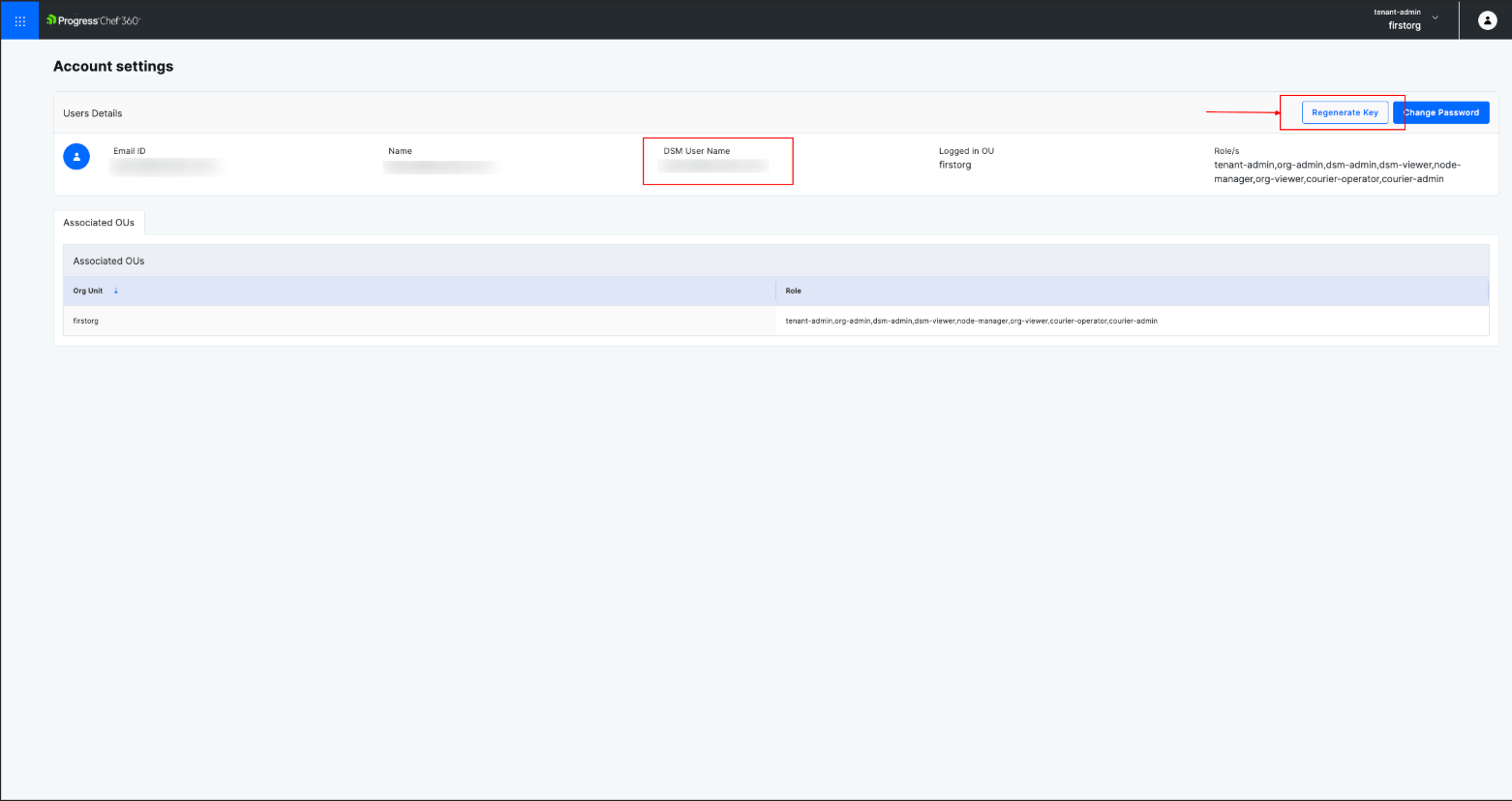
Or use the Chef 360 UI to create an org. Click Tenant Management and then Create New org unit.
This newly created org will be added along with the FQDN:31000/organizations/<org> and now the knife is configured. Port 31000 is the Chef 360 API Gateway port. It is the primary endpoint used by the Chef 360 UI, DSM APIs, and client tools such as knife to communicate with the platform.
Navigate to ~/.chef directory and edit your config.rb or knife.rb file. Provide FQDN of your Chef 360 along with node_name, client_key and cookbook_path.

Create a new Chef repo to store your Chef content. It's also a good practice to initialize the directory with Git to be able to back up and share your content:
$ chef generate repo chef-repo
From the command line, run knife to fetch the SSL key, check it and confirm the configuration:
$ knife ssh fetch
Bootstrap raw target nodes using knife bootstrap. A pre-shared SSH key is not necessary, but if you’re not using a key, you’ll need the target node’s username and password information.
$ knife bootstrap ec2-xx-xxx-xx-219.us-west-1.compute.amazonaws.com -x ubuntu -i akshay-demo.pem --sudo -N production
Where:
-x ubuntu: is the machine name.
-I akshay-demo.pem: key to authenticate.
-N production: Node name
Note: A target node is the server or machine you want to configure and manage using the Chef solution.
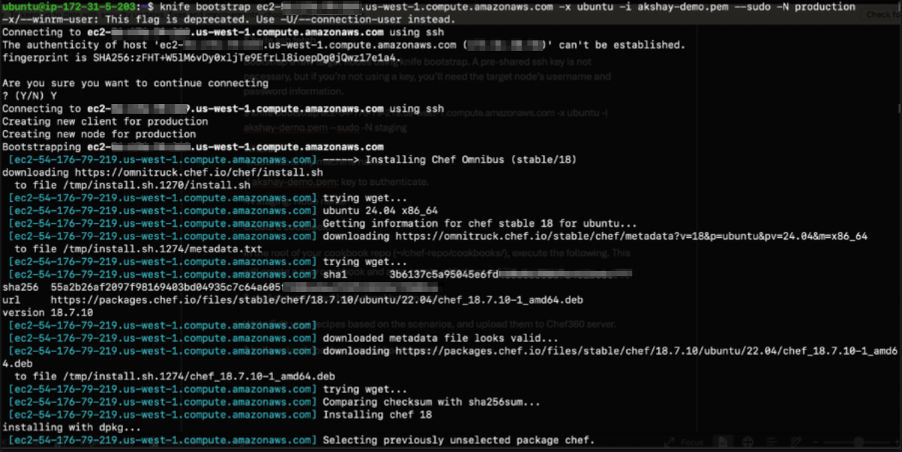
Create a cookbook:
In the root of your cookbook repo (~/chef-repo/cookbooks/), execute the following. This will create a new cookbook and auto-create a kitchen.yml file.
$ chef generate cookbook <cookbook name>
Write/Edit your recipes based on the scenarios and upload them to the Chef 360 server.
$ knife upload cookbook <cookbook name>
You can check the cookbook listing with the following command:
$ knife cookbook list
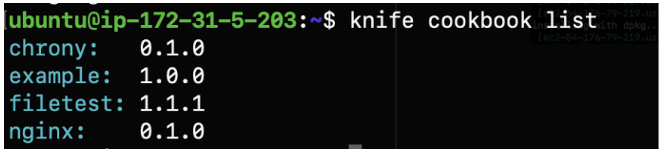
Once cookbooks are created and uploaded, you need to add them to the run-list associated with the nodes.
In this scenario, we are trying to install/update Chrony on an Ubuntu machine.
Chrony is a tool that keeps your computer’s clock accurate by syncing it with Internet time servers.
$ knife node run_list add production ‘recipe[chrony::default]’
Finally, you can invoke chef-client with the knife ssh command or manually log into the node and enter the command $ chef-client manually.
$ knife ssh 'name:production 'sudo chef-client' -x ubuntu -i akshay-demo.pem
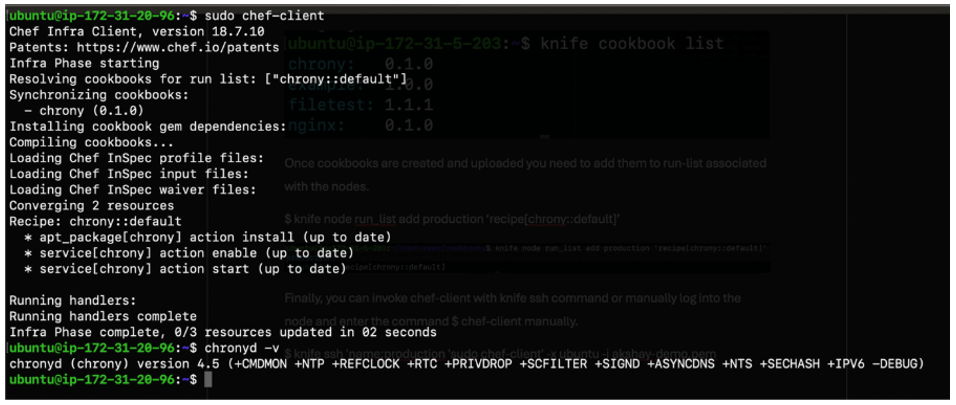
From the above screenshot and with the command $ chronyd –v we confirm Chrony is installed on the machine.
Conclusion
You’ve now connected your workstation to Chef 360 DSM, onboarded a node, and applied a sample configuration change. From here, you can scale this workflow by onboarding additional nodes and promoting validated cookbooks to keep systems consistently aligned to the desired state.
For more details, refer to the Chef 360 product documentation and the DSM documentation for your release version.
To try out the Chef 360 platform, request a trial today!